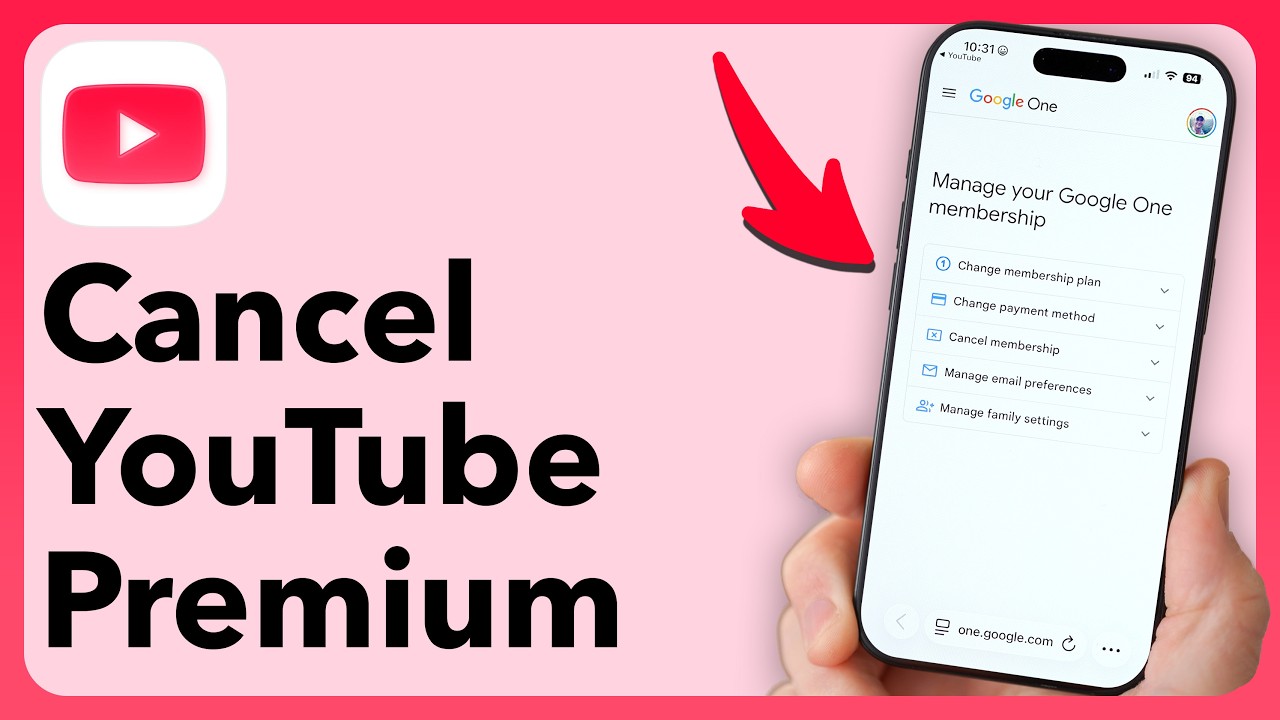
Purchasing YouTube Premium is straightforward, but canceling it isn't. Below, we'll walk you through the step-by-step process of cancel YouTube Premium on an iPhone, Android device, or PC.
The following steps also apply to canceling YouTube Music Premium. The process varies depending on the device you're using. We've listed all the steps you need to follow to how to cancel YouTube Premium.
Cancel YouTube Premium on iPhone and iPad
Generally, you should be able to cancel YouTube Premium on iPhone by following the steps below. However, there are two special cases where you’ll need to take a different approach. We’ve listed these special cases below.
Step 1: Tap your profile picture, then tap “Paid Memberships.”
Step 2: Select the subscription you want to cancel, then tap “Manage Apple Subscriptions.”
Step 3: Tap the subscription, then tap “Cancel.”
There are two exceptions where the cancellation process works differently. These are:
Special Case 1 – You purchased the membership through the YouTube app for iOS: If this is the case, you’ll need to cancel through your Apple account.
Special Case 2 – If you’re billed through Google, you’ll need to use a non-iOS device to cancel, such as a computer.
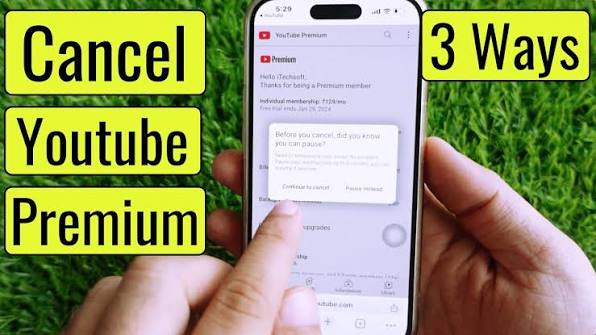
Cancel YouTube Premium on Android
To cancel YouTube Premium on Android, follow these steps:
Step 1: Tap your profile picture, then tap “Paid Subscriptions.”
Step 2: Select the subscription you want to cancel, then tap “Cancel Subscription.”
Step 3: Select the reason for cancellation, tap “Continue,” and then tap “Yes.”
If the method described above doesn’t work, it may be due to one of the following issues. In that case, follow these steps to cancel your subscription:
- Billing is handled by Apple: If you purchased your subscription through the YouTube app for iOS, you’ll need to cancel it through your Apple account.
- Billed through Google Play: If you’re using a Google Play subscription, you’ll need to cancel it in your Google Play account settings. To do this, follow these steps:
- On your Android device, open the Google Play Store and go to “Subscriptions.”
- Select the subscription you want to cancel.
- Then tap “Cancel Subscription” and follow the on-screen instructions.
Cancel YouTube Premium on a PC
If you want to cancel YouTube Premium on PC, follow these steps:
Step 1: Go to the Paid Members area on YouTube.
Step 2: Click “Manage Membership” and then “Cancel.”
Step 3: Now click “Cancel Membership,” select the reason for cancellation, then click “Continue” and “Yes.”