
Spotify playlists are one of the best ways to organize your favorite songs, discover new music, and create collections for every mood and occasion. Whether you’re putting together a workout playlist, planning a road trip, or looking for relaxing music to study to—creating a playlist takes just a few minutes.
If you’re wondering how to create a Spotify playlist, you’ve come to the right place. This guide explains how to create, edit, and share playlists on mobile devices and desktop computers, as well as how to manage your music library more efficiently.
Part 1: How to Create a Spotify Playlist on Mobile Devices/Desktop
Spotify playlists let you organize your favorite songs and get personalized recommendations. Unlike simply “liking” songs, playlists help you organize your music exactly the way you want.
Create a Spotify Playlist on Your Phone
If you’re using Spotify on an iPhone or Android device, follow these steps.
- Launch the Spotify app and sign in to your account.
- Tap “Your Library” in the bottom-right corner.
- Tap the + (Create) button.
- Depending on your app version, you may see the “Create Playlist” option right away.
- Select a playlist from the available options.
- Enter a descriptive name. Finally, tap “Create.”
Congratulations! You’ve successfully learned how to create a Spotify playlist iPhone.
Create Your Spotify Playlist on Your Desktop
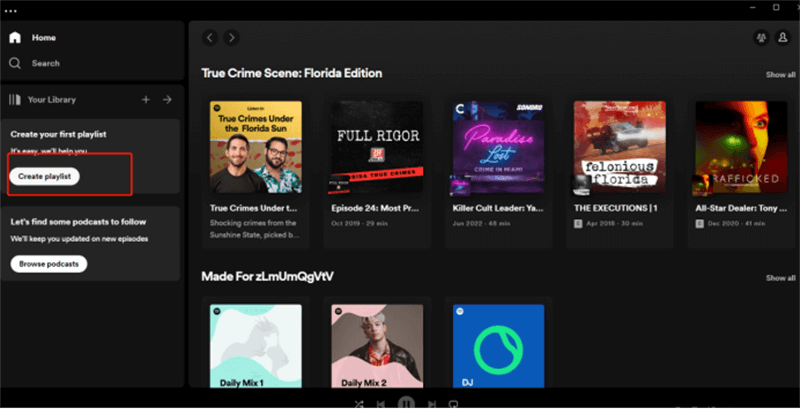
Many users also want to know how to create a Spotify playlist on desktop. Here’s how.
- Launch Spotify on your Windows or Mac computer.
- Click “Create Playlist” in the left sidebar. A new, empty playlist will appear immediately.
- Click the playlist title and enter a new name. You can also add a description and a cover photo.
Part 2: How to Add Songs to a Spotify Playlist
Now that I’ve learned how to create a Spotify playlist, the next step is to add music to it.
- On your phone: Tap the three-dot menu next to any song and select “Add to Playlist.” Choose your preferred playlist.
- On a desktop: Right-click the song or drag it directly into your playlist.
Editing and Organizing Spotify Playlists
A great playlist isn't static; you can customize it at any time.
- Rename a playlist: Open the playlist settings and select “Edit Details.” Enter a new name and save your changes.
- Change the Playlist Cover: Spotify lets you upload a custom cover image for many playlists, making them easier to identify.
- Reorder Songs: Simply drag and drop the songs into a new order on your desktop, or use the editing feature on your mobile device.
- Remove songs: Open the playlist, tap the three-dot menu next to a song, and select “Remove from this playlist.”
Sort your playlist: You can sort songs by the following criteria:
- Newly Added
- Artist
- Album
- Title
- Customer Order
Effective management of your playlists helps keep your music library organized.
Share Your Spotify Playlist
Once you've learned how to create a Spotify playlist, you might want to share it with others. Spotify offers several sharing options.
Copy the playlist link: Open the playlist. Tap Share > Copy Link. Share on social media: Spotify supports direct sharing to:
- Instagram Stories
- Messenger
- Snapchat
Spotify Code: Every playlist has a unique Spotify Code that friends can scan using the Spotify app.
Embed a Playlist: If you own a website or blog, you can embed Spotify playlists using the generated HTML code.