If you want to group several videos on YouTube into a collection, you can create a playlist. Never done it before? Read here to learn how to create a YouTube playlist in the smartphone app or on the YouTube website.
How to Create a YouTube Playlist
To create YouTube playlist, you must meet one requirement: you need a YouTube or Google account. You don’t need your own channel. With one account, you can even create multiple playlists with ease. You can choose whether to create YouTube playlist using the app on your smartphone or on your computer. And you’re ready to get started:
Step 1: Open YouTube
Select the YouTube app. Once you’ve opened the video platform, choose a video you want to add to a playlist. To the right of the video, click the three-dot menu.
Step 2: Add a video to a playlist
Tap “Add to Playlist” in the menu.
Step 3: Select a new playlist
If you want to create a playlist, select “New Playlist” in the top-right corner of the next menu.
Step 4: Set Details
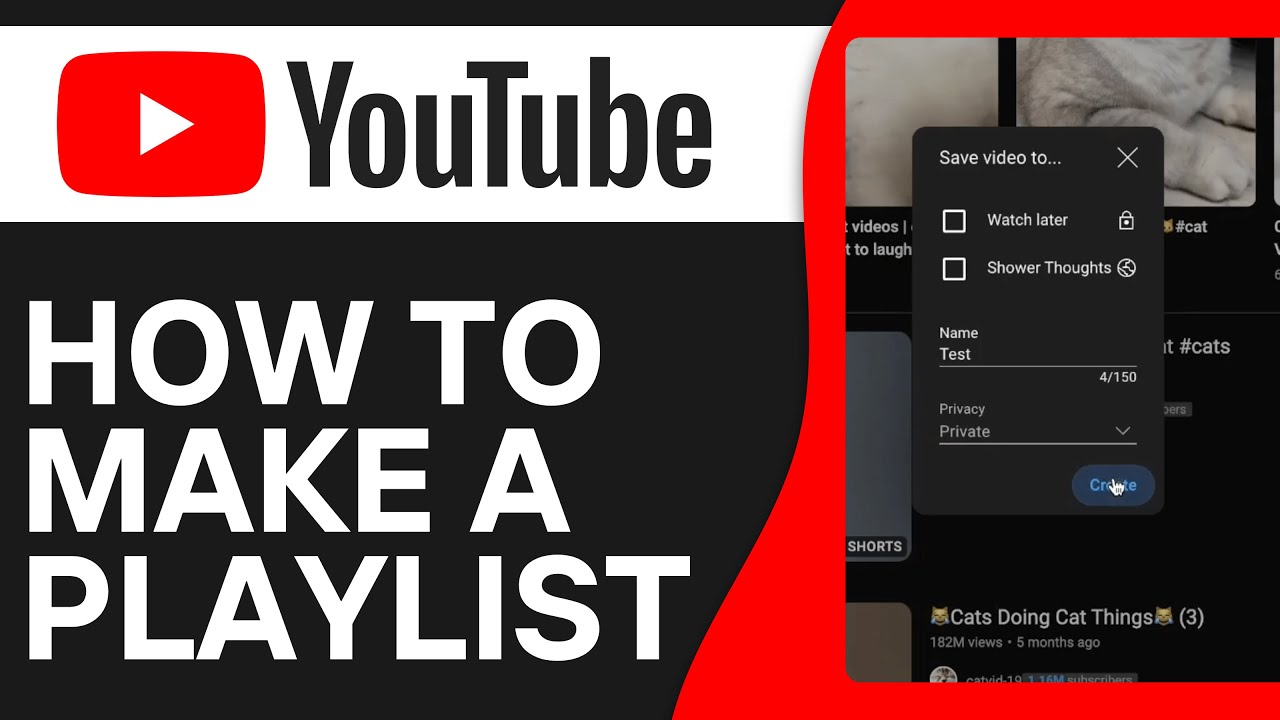
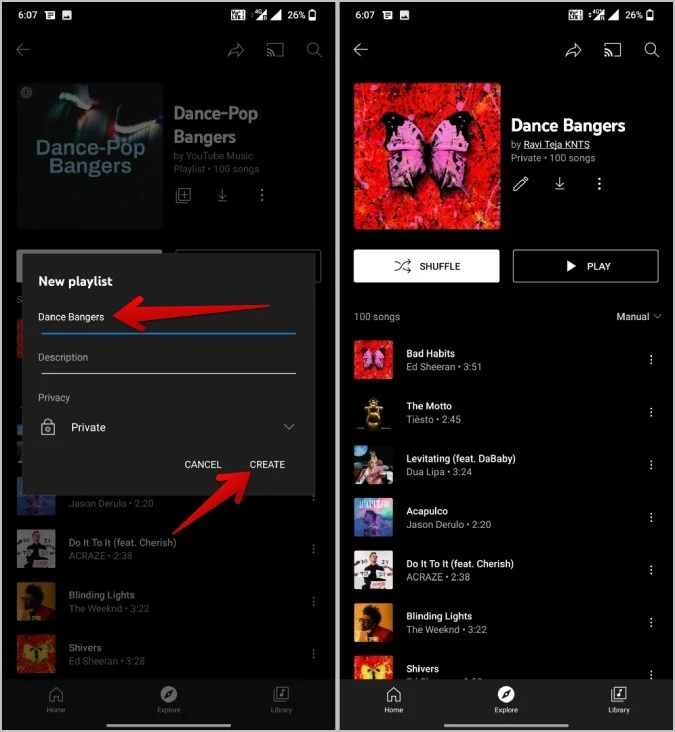
A new window will open where you can name your playlist. You can also set the privacy settings for your list here by choosing whether the list will be publicly visible or private (not listed) and viewable only by you.
You can also share the list with specific people using a link. After you’ve made the desired settings, select “Create.”
Step 5: Add More Videos
Tap the three-dot menu next to the video of your choice. After tapping “Add to Playlist,” select the name of the playlist you created earlier.
Step 6: Go to the Library
After creating your playlist, you can select “Library” from the menu in the lower-right corner.
Step 7: View All Playlists
In the new window, under “Playlists,” you’ll find all the playlists you’ve created. Clicking on a playlist will display all the videos assigned to that playlist.
How to Create a Playlist on Your Computer, Step by Step
To create YouTube playlist on your desktop, follow these instructions:
Step 1: Open the YouTube website
Using your preferred browser, go to the video platform’s website. Sign in with your Google account. Then select a video you want to add to a playlist and click the three-dot menu next to it. In the window that appears, select “Add to Playlist.”
Step 2: Create a new playlist
A new menu will open. If you want to create a new playlist, click on the last option, “Create New Playlist.”
Step 3: Enter playlist details
Next, you can give your playlist a title. As described in the app instructions, decide who will be able to view your playlist. Then click “Create.”
Step 4: Add More Videos
Want to add more videos to your playlist? Click the three-dot menu next to the video of your choice, then click “Add to Playlist.” From there, select the playlist you created earlier.
Step 5: Go to your Library
Click the hamburger menu (the three horizontal lines) next to the YouTube logo. In the expanded navigation menu, select “Library.”
Step 6: View all playlists
In the bottom section, you’ll find the “Playlists” area. This is where all the playlists you’ve created are listed. To play a playlist, simply select it.
How to Edit a YouTube Playlist
Whether you're editing the playlist in the app on your smartphone or via the website on your desktop computer, follow these steps: Select one of the YouTube playlist you've created. You'll then see several options for editing the playlist:
- Customize the title.
- Change or add a short description.
- If you tap and hold the two dashes next to the video, you can change the order of the videos within the list.
Deleting a YouTube Playlist Made Easy
Open one of your YouTube playlist. Click the menu icon with the three dots next to the list. Then select the “Delete Playlist” option—also indicated by the trash can icon. In the next window, you’ll need to confirm that you really want to delete YouTube playlist. To confirm, click “Delete” again.
Now, the playlist URL and the name of the list will no longer appear in YouTube Analytics. It will also no longer be possible to search for the playlist. If your list was publicly visible, the playlist may still appear in your viewers’ watch history.
Removing a Single Video from a Playlist
In the app, navigate to the YouTube playlist of your choice. Click the three-dot menu next to the video you want to delete. In the new menu, select “Remove from ‘Playlist Name’.” The video is permanently removed. Follow the same steps on your computer.