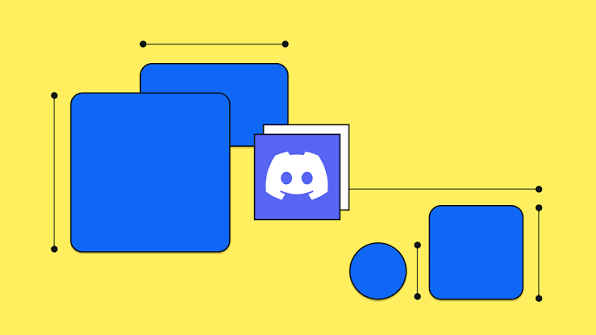
A banner helps identify a server and attract new members. As with all social networks, it's a good idea to personalize it to improve the user experience. How to create a server banner on Discord?
Types of Server Banners
Before diving into the individual steps for creating a Discord server customization, it’s best to first understand what a server banner is. This feature has been available to all users since June 2021.
A banner is an image that you can customize and that appears at the very top of the channel list. The purpose of creating a server banner is to present subscribers with a visual representation of your server or community. The image also serves to distinguish your server from others.
- However, please note that to obtain a server banner, you must reach Boosting Level 2.
- If you want an animated server banner, you must reach Boosting Level 3.
Static Server Banners
You can add a static image to your server banner if your server is at Boosting Level 2. A static banner is a still image used on your server. The image is primarily intended to convey a sense of belonging and uniqueness to your community. It also allows new users to easily identify the server.
Ideally, you should use a static banner if your design includes text. This way, future members can easily read your message and better understand the information provided.
Animated Server Banners
You can add an animated image to your server banner once it has reached Boosting Level 3. Please note the following:
- The animation on the banner is activated for 5 seconds when the guild is first loaded. After that, it pauses.
- When a user scrolls through the list of chat rooms, the banner disappears and then comes back to life for 5 seconds when it reappears.
- The banner comes to life especially when hovering over it, just like an animated server icon.
- The banner does not animate when “Reduced Movement” is active.
Creating a Server Banner
You’ll need to choose an image that perfectly matches your community’s image. Here are some tips for creating a banner for your server:
- Wondering how big a Discord server banner should be? Keep in mind that the recommended size for a banner is 960×540 pixels, which is a 16:9 aspect ratio. If your image happens to exceed this threshold, don’t worry—Discord will resize it for you.
- Still, choose an original image that’s unique and features clearly visible elements.
- Avoid using complex elements within the first 48 pixels of the file. This way, you can include your server’s name.
- In terms of design, it’s not advisable to use a GIF image that contains text or a logo.
You can use images from Pinterest or other platforms for your banner. However, make sure the image you use is royalty-free. Ideally, if possible, you should create a design based on these templates.
You can create a custom banner on Adobe's official website or using online tools like Kapwing. However, if you don't have time to design it yourself, you can also hire a professional graphic designer to enhance your server banner.
Adding the Banner to the Server
The next step is to download the image. The process is always the same, regardless of the device you’re using.
- First, open the Discord app, then join the server. Click the server name in the top-left corner, and then use the gear icon to go to the “Server Settings” section.
- Once you're in the settings, scroll down until you find the option to change banners at the bottom of the screen. There, you'll see a note stating that your server requires Boosting Level 2 to use this feature.
- Then download your image. Don't worry—if the image wasn't created in the required size and dimensions, you can adjust it in Discord.