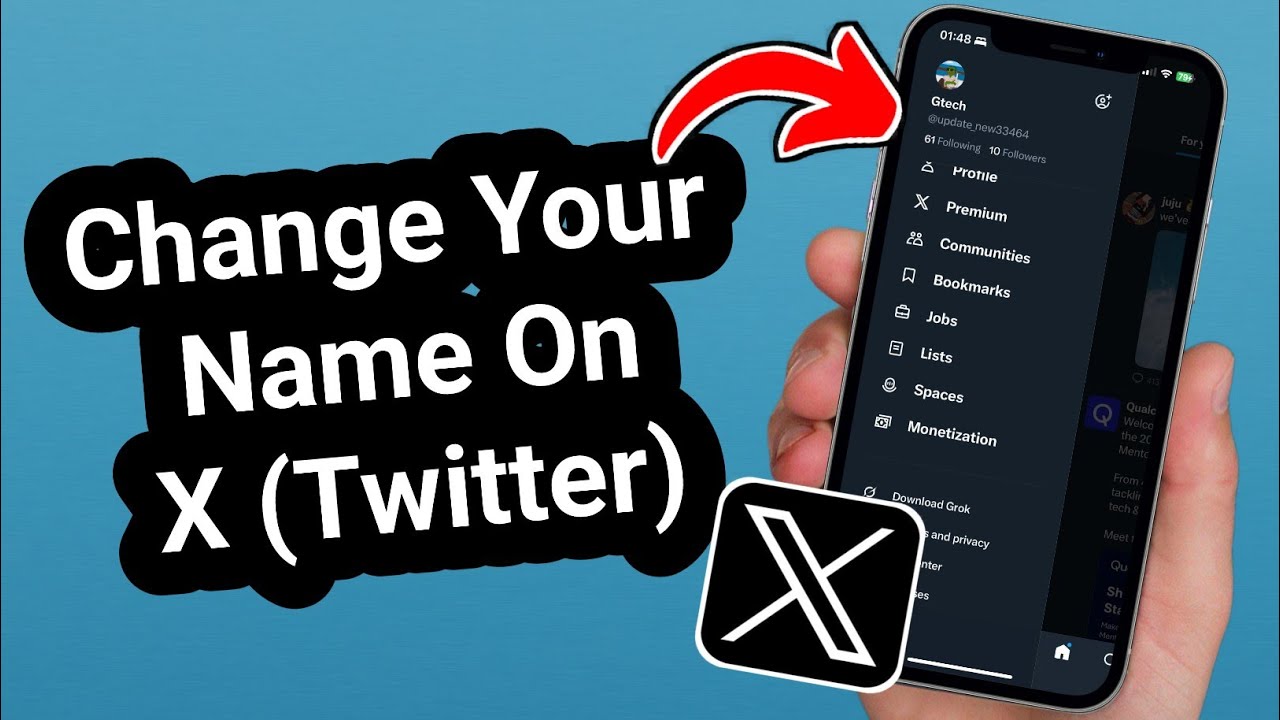
If you're no longer happy with your X name, you can easily change it. First, you'll need to distinguish between change X username and change X profile name. Ultimately, however, you can change both. Learning how to change your name on X can help you update your online identity, whether you want to use a new personal name or a brand name.
Changing Your Name in Your X Profile
You can enter your own name in your X profile. This should be a personal identifier—such as your real name or a company name—so your friends can identify you on X. Change X profile name appears with your tweets and serves as a link to your X profile.
- To change your profile name, you must first log in to X.
- Now, either click on your profile picture in the center at the top of the page or click “Profile” on the left side of the website. Your personal X page will open.
- Select “Edit Profile,” click on your old name, and enter a new one.
- Finally, confirm your changes by clicking “Save Changes.”

Changing Your Username on X
Your username is your unique identifier on X. For this reason, it cannot already be in use by another user—it must be “unique.” You also change X username when logging in to X.
- First, click on “More” on the left-hand side. From the drop-down menu that opens, select “Settings and Privacy.” Then click on “Your Account.”
- Next, navigate to your account information. In the “Username” field, enter the X name you want. The network will immediately check whether your desired name is available. If it isn’t, you’ll need to come up with a different one.
- Confirm your new username by clicking the “Save Changes” button at the bottom of the page. The next time you log in, you’ll need to use this name.