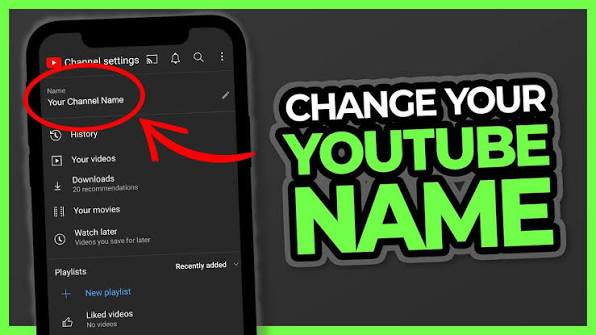
Since 2021, you've been able to change YouTube channel name without affecting your Google account. To do this, simply click on your profile picture to go to your channel and open the channel settings.
YouTube: Change Channel Name – Quick Guide
Via the browser
- Click your profile picture in the top-right corner and select “View Channel.”
- Click “Customize Channel.”
- In the “Profile” tab that’s already open, you can now change youtube name and your alias or handle.
- Then go to “Description” if you’d also like to edit the channel description.
- Click “Publish” to save the changes.
Using the YouTube app
- Open the YouTube app and tap your profile picture in the bottom-right corner.
- Tap “View Channel.”
- Depending on whether you’ve published any videos, you’ll see either a text field labeled “Edit Channel” or a pencil icon below your name. Select the option that appears.
- In the first line, change youtube name; in the second line, change your alias or handle; and in the fifth line, change your channel description.
How to Change Your YouTube Channel Name: Step by Step
Follow our step-by-step guide to how to change youtube channel name. You can do this in just a few steps, whether you're using a browser (desktop) or the YouTube app.
How to Change Your YouTube Name in a Browser
Step 1: Select the “View Channel” menu option
Hover over your profile picture and click “View Channel” in the menu that appears.
Step 2: Select “Customize Channel”
You are now in your YouTube channel menu. Click the “Customize Channel” button here.
Step 3: Change Your YouTube Name
Click in the field under the “Name” section to change your account name, and click in the “Alias” field to change your handle. Unlike your username, handles are unique and change your account’s URL. Two lines below, you can also edit your channel description if you’d like.
When you’re done, confirm your changes by clicking “Publish” in the top-right corner.
How to Change Your YouTube Name Using the App
Step 1: Tap your profile picture and select “View Channel”
Open the YouTube app and tap your profile picture in the lower-right corner.
Select the “View Channel” option to open the menu for customizing your YouTube channel.
Step 2: Tap the “Edit Channel” button
In this menu, tap “Edit Channel.” If you’ve already uploaded videos, a pencil icon will appear instead.
Step 3: Customize Your YouTube Name and Channel Description
Now change youtube name, alias, or handle, and, if you'd like, your channel description as well.