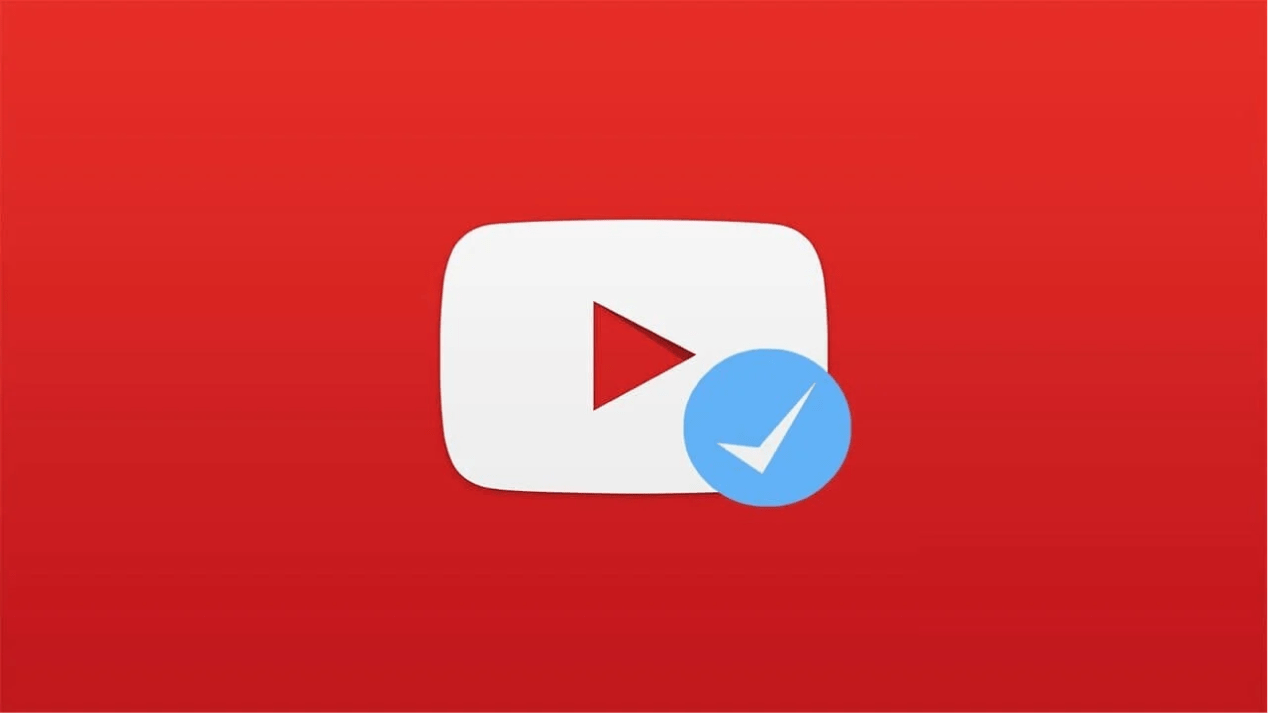
Have you ever noticed those cool checkmarks next to the names of big-name YouTubers? Well, that’s YouTube verification—a sign of credibility.
Once you’ve set up your own YouTube channel and built a large following, it’s only natural to think about getting verified youtube channel, as this helps boost the credibility of your channel or brand. It shows the world that you’re legitimate in YouTube’s eyes and that you are who you say you are.
In this post, we'll explain what YouTube verification is, who is eligible for it, and the exact steps you need to take to get verified youtube channel.
What does it mean to be verified on YouTube?
YouTube verification is the process of having your account verified on YouTube. There are two different types of verification on YouTube.
1. YouTube Account Verification
The first type of verification is YouTube account verification. It simply means that your phone number is confirmed using a one-time code sent to your phone. This ensures that you are a real person and not a bot. This also allows you to enjoy additional features such as:
- Uploading videos longer than 15 minutes
- Custom thumbnails
- Live streaming
To check whether your phone number has been verified, go to Settings > Account > Channel Status and Features. Click on Channel, and under the “Feature Permissions” tab, you'll see “Medium Features Enabled.”
2. Verifying Your YouTube Channel
Another type of YouTube verification is verifying your YouTube channel. This means that you’ll receive a verification badge—in the form of a checkmark or a musical note (if you’re an artist)—next to your channel’s name.
Verifying your YouTube channel indicates that it is official and distinguishes it from other channels with similar names.
Benefits of YouTube Verification
Here are some great benefits of verifying your YouTube channel:
- Upload videos longer than 15 minutes.
- Stream content live.
- File copyright claims (Yes, you can’t file them if your channel isn’t verified.)
- Use custom thumbnails.
- Ability to stop or block stolen traffic to other channels when your videos are reuploaded. You can block music or audio in your videos from being reuploaded by other channels. Additionally, you can even monetize reuploads on other channels.
Who is eligible for YouTube verification?
Regardless of the number of subscribers, anyone can easily verify their phone number on YouTube. However, to have your channel verified, you must meet the following criteria:
- Subscribers: You must reach 100,000 subscribers on your YouTube channel to receive a verification badge.
- Authenticity: Google requires that your channel accurately represent the real YouTuber, brand, or personality it claims to be. Various factors, including the age of your channel, are evaluated to verify your identity. YouTube may also ask you for additional information or documentation.
- Profile Requirements: Complete your profile. The channel must be public and feature a banner, a good description, and a profile picture. In addition, you must regularly post content on your channel.
How to Get Verified on YouTube
Let's take a look at the process for verifying your phone number and your YouTube channel. How to get verified on Youtube?
1. Verifying Your Phone Number
- To verify your phone number, simply go to YouTube's phone number verification page, select your country from the list, and enter your phone number.
- Finally, click GET CODE.
- Enter the code you received on your phone, and your phone number will be verified on YouTube.
2. Verifying Your YouTube Channel
Follow these steps to verify your YouTube channel:
1. The first step is to meet all the requirements for verifying your channel on YouTube.
2. Next, go to YouTube’s channel verification page. If the YouTube account you’re signed in to doesn’t have 100,000 subscribers, you’ll see something like this on the verification page: However, if your channel has already reached the 100,000-subscriber mark, you'll see something like this.
3. Click “Apply Now” to go to the channel verification application.
4. Enter the required details, such as your channel name and channel ID.
5. After you've entered the information, click the “Submit” button, and you'll receive a confirmation email. Over the next few weeks, YouTube will review your channel and let you know the result.