Instagram Live is one of the most direct ways to connect with your community in real time. Whether you’re answering questions, giving a tutorial, or just chatting casually with your followers, a live stream creates immediate interaction and builds a sense of connection.
If you’re wondering how to go live on Instagram in 2026—or searching for “go live on Instagram”—the good news is: it’s easier than ever. You can stream directly from your smartphone or significantly upgrade your setup with a computer and a professional webcam.
In this guide, you’ll learn everything you need to know about Instagram Live, including requirements, step-by-step instructions for smartphones and PCs, the right equipment, pro tips, and answers to frequently asked questions.
What You Need to Go Live on Instagram
Before you start your first Instagram live stream, you should check a few basics:
- A public account with at least 1,000 followers: In the past, many users could use Instagram Live regardless of their reach. Under the new policy, a public account with at least 1,000 followers is required. Accounts that don’t meet this requirement cannot use the Live feature.
- A smartphone or computer: The Instagram app is primarily designed for mobile use. However, with the right setup, you can also start an Instagram live stream from PC.
- A stable internet connection: For smooth video and clear audio, an upload speed of at least 10 Mbit/s is recommended.
- A webcam or smartphone camera: The built-in smartphone camera is sufficient for simple streams. If you go live on Instagram regularly, a high-quality webcam like the Insta360 Link 2 Pro or Link 2C Pro will visibly take your production to the next level.
How to Go Live on Instagram Using Your Smartphone
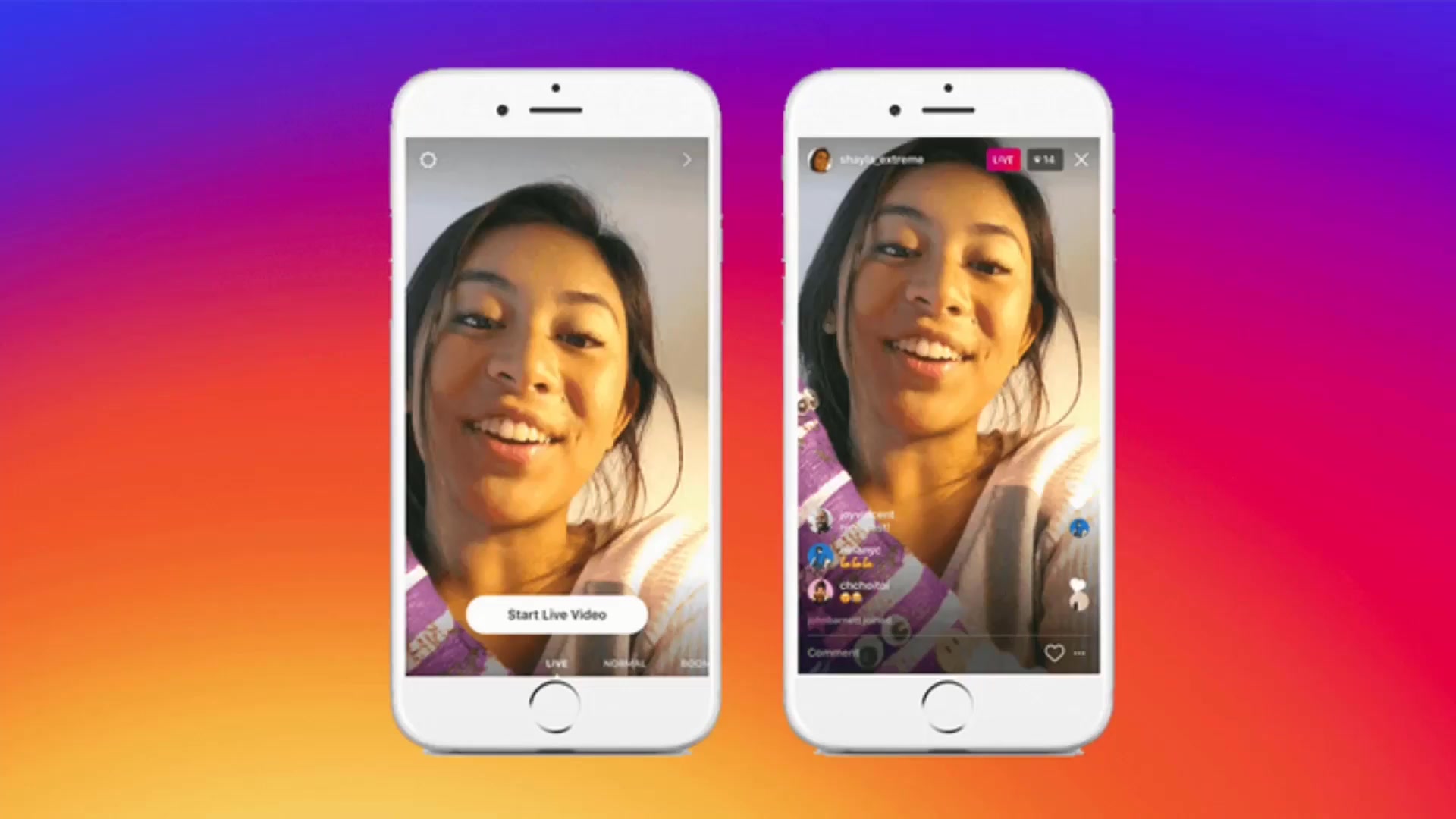
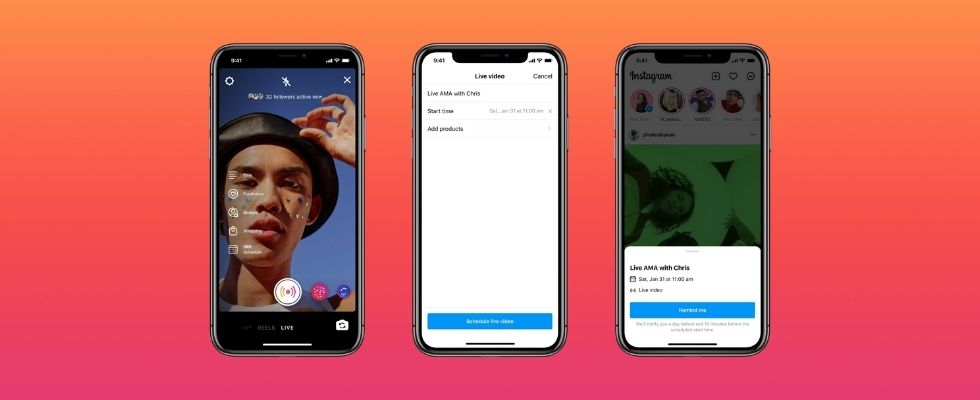
For most people, streaming via smartphone is the fastest and easiest way. Here’s how to go live on Instagram on an iPhone or Android device:
- Open the Instagram app. Tap the “+” icon at the bottom or top of the screen, then select Live.
- Set the details. Give your stream a short title so viewers know right away what it’s about. Also, choose whether you want to go live on Instagram publicly or just for close friends.
- Check your settings. If needed, enable features like monetization badges, collabs, or Q&A to generate more engagement.
- Tap the Live button. The stream starts immediately, and your followers will receive a notification.
- Interact in real time. Respond to comments, pin questions, and use filters if they fit your stream.
- End and save the stream. When you’re done, tap End. You can then save the recording to your profile or download it to use later.
That’s it. If you’ve been wondering how to go live on Instagram, using your smartphone is the quickest way to start an Instagram livestream and connect with your audience instantly.
How to Go Live on Instagram From a PC
Instagram doesn’t offer desktop livestreaming as a standard feature. However, there’s a reliable workaround using OBS Studio (Open Broadcaster Software) and a stream key. This setup is especially useful if you want to use a professional webcam, a separate microphone, or your own overlays for a higher-quality Instagram live stream.
Step 1: Install OBS Studio
Download OBS for Windows or macOS and install the software on your computer.
Step 2: Connect Your Webcam
Plug in your webcam. We recommend the Insta360 Link 2 Pro or Link 2C Pro. Both models deliver 4K quality, AI tracking, and automatic framing, respectively, helping creators produce a more professional Instagram livestream with minimal effort.
Step 3: Add a Webcam in OBS
Open OBS and go to Sources → Video Capture Device. Select your webcam and adjust the resolution and frame rate so that your Instagram live stream from PC runs smoothly and stably.
Step 4: Enter the Stream Key
Instagram occasionally provides stream keys for certain accounts. More often, a third-party tool or an RTMP service is used to generate a suitable stream key. Copy this key into OBS under Settings → Stream.
Step 5: Start Streaming
Once everything is set up, click Start Streaming in OBS. Your webcam feed will then be transmitted to Instagram via the RTMP connection, allowing you to stream live on Instagram directly from your computer.
Pro Tips for a Successful Instagram Live Stream
Once you know how to stream live on Instagram, these tips will help you achieve better results:
- Announce your stream in advance. Use Stories with countdown stickers or posts so your community knows when you’ll go live on Instagram.
- Position the camera at eye level. Whether you’re using a smartphone or a computer, a position at eye level looks more natural and flattering.
- Make sure you have good lighting. Natural light often works very well. A ring light is a simple and effective solution for consistent brightness.
- Choose a quiet location. Good audio is just as important as good video. Minimize background noise as much as possible.
- Actively engage your audience. Ask questions, run polls, and respond to comments to keep viewers engaged longer during your Instagram Live sessions.
- Repurpose the content. Save your Instagram livestream and turn highlights into Reels, Stories, or posts later.
Especially if your goal is to go live on Instagram, you should think not only about the start of the stream but also about how you’ll turn the live content into additional social media content later on.
Learning how to go live on Instagram is one of the easiest ways to strengthen relationships with your audience and increase engagement in real time. Whether you choose a smartphone or a professional PC setup, Instagram Liveprovides powerful opportunities to connect with followers, answer questions, and grow your community.
By consistently creating high-quality Instagram live streams, engaging with viewers, and repurposing your content afterward, you can maximize the value of every Instagram livestream and achieve better long-term results on the platform.