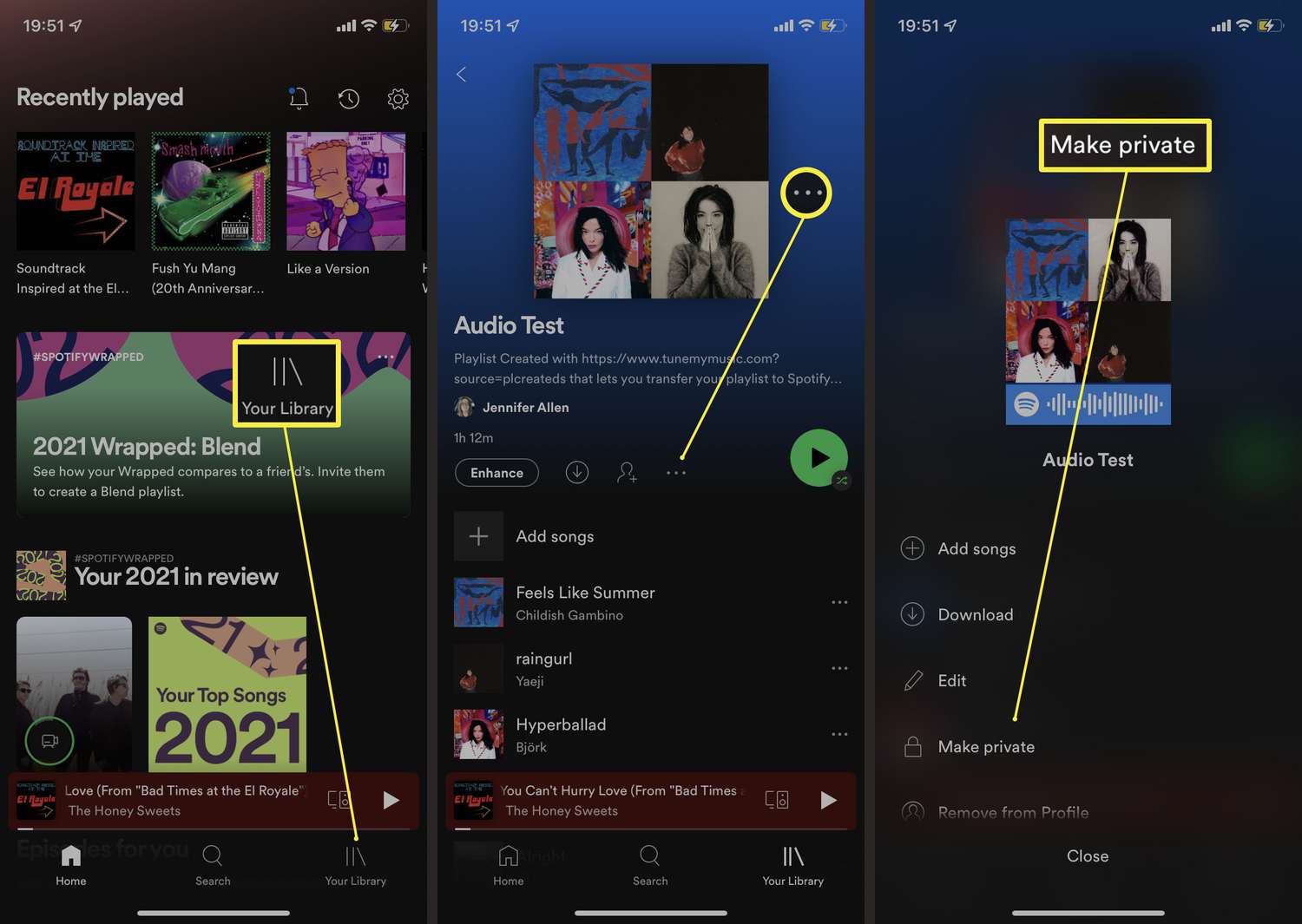
If you've created a series of perfect playlists on Spotify, you might want to share your music taste with the whole world. To do that, you need to know how to make your Spotify playlists public on your profile. Follow the steps below, how to make a spotify playlist public.
Part 1. A Quick Guide to “Making a Spotify Playlist Public”
Spotify playlists are usually public by default. And you can make the Spotify playlists you create public or private at any time, so that all Spotify users can search for, save, and play spotify public playlist. Strangers who find your playlist cannot add or remove songs, set it to spotify private playlist, or make any other changes—only the playlist creator has this ability.
Part 2. Making a Spotify Playlist Public or Private on a PC & Web Player
In this part, you’ll learn how to make spotify playlist public on a PC and the web player. The steps are very similar; here, we’ll use a Windows PC as an example.
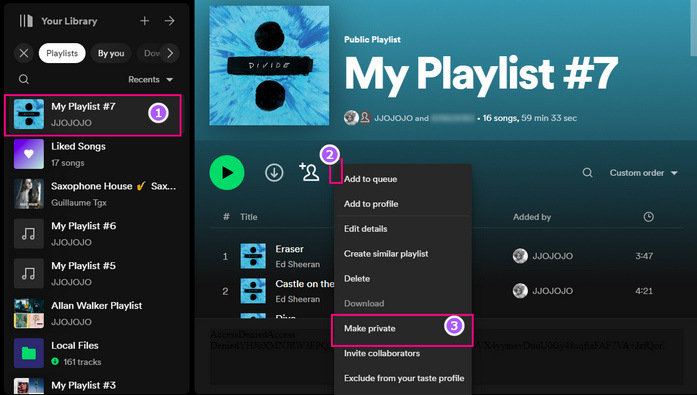
Step 1. Launch the Spotify app on your desktop or the Spotify web player in your browser, and sign in with your account.
Step 2. On the left side of the screen, select the playlist you want to make public or private.
Step 3. Click the “three dots” next to the download button, then select “Add to Profile.”
Part 4. How to Share a Spotify Playlist with Friends
If you want only certain friends to be able to see the playlist, we recommend sharing the playlist directly with them.
On Your Phone
Step 1. Open the Spotify app on your Android phone or iPhone. Tap Library.
Step 2. Open the Playlists section. Here you’ll see all the playlists you’ve created yourself, as well as playlists from others that you’ve saved.
Step 3. Find the playlist you want to share with others. Tap the three dots in the top-right corner. Here you’ll find the Share option.
Step 4. In the new menu, select the app you want to use to share spotify playlist. Here you’ll find options like WhatsApp, Facebook, or Twitter. Confirm the recipients.
On the Desktop
Tip: It is no longer possible to share spotify playlist directly with friends via social media on Windows.
Step 1. In Spotify, open the playlist you want to share. Click the three dots here as well.
Step 2. Tap “Share” and select “Copy playlist link,” then send the link to your friends.