You can permanently save instagram stories by backing them up within the app, enabling the Archive and Highlights features, and using tools to automate backups and embed Story widgets on your website, while third-party downloaders manage public Stories from other accounts.
By default, Instagram Stories disappear after 24 hours, which is frustrating if you've put a lot of effort into creating a post. Fortunately, there are several reliable ways to keep your own Stories—and even a few options for saving other users' Stories.
Make sure your Stories remain visible on your website permanently
Instead of losing your Stories after one day, you can embed them in a widget that appears on your website and automatically updates whenever you post something. You link your Instagram account, select the Stories you want to display, customize the widget’s appearance, and paste the generated embed code into your website. This allows visitors to view your Stories indefinitely without having to log in to Instagram.

Save Your Own Stories Using the Instagram App
Instagram offers a range of built-in options for saving your Stories, whether you want to act right away or come back to them later. How to save instagram stories?
- Save instagram story right after posting it. Tap your active Story, open the three-dot menu at the bottom, and select “Save Photo” or “Save Video.” This works the same way on both iPhone and Android, and the file will be saved in its original format to your phone’s gallery.
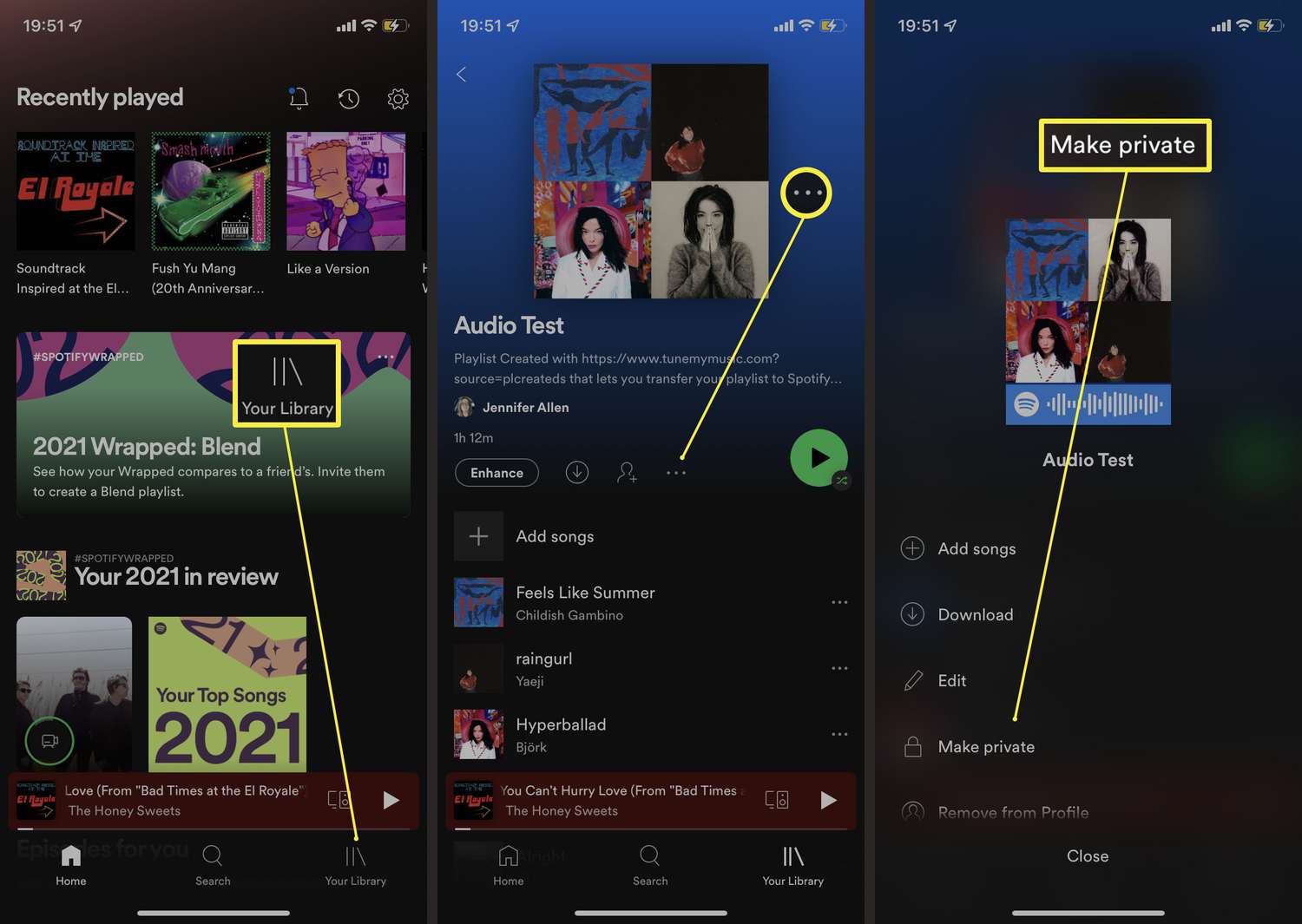
- Enable automatic archiving. Instagram story archive every Story you post once the 24-hour period has expired. To do this, go to your profile settings, open “Archive,” tap the three-dot icon, go to “Settings,” and enable “Save Story to Archive.” From then on, every Story you post will be automatically saved. You can access them at any time under Settings > Archive, sorted by date. This archive also lets you convert older Stories into Highlights or view your Stories’ performance data.
- Add Stories to Highlights. Highlights are the permanent Story folders below your profile picture. Open an active or archived Story, tap the heart-shaped Highlight icon, and either add it to an existing Highlight or create a new one by naming it. Businesses often use Highlights to group products, answer frequently asked questions, or showcase customer testimonials—and you can customize the cover photo after creating the Highlight.
- Turn an entire Highlight into a single video. With Instagram, you can combine an entire Highlight folder into a single downloadable video: Open the Highlight, tap “Create,” wait until a Reel is generated (you can select background music), then tap “Next” and finally “Save.” The finished video will be saved directly to your smartphone.
- Share a Story as a feed post. In an active or archived Story, tap the three-dot menu, select “Share as Post,” and publish the Story. This keeps the content permanently on your profile and visible to your followers.
Automated Story Backups with a Web-Based Tool
For a hassle-free solution, a service can connect to your Instagram account and automatically save every new Story, including older, archived Stories. It also copies your Highlights and converts them into customizable, embeddable widgets—handy for agencies or anyone who manages multiple accounts.
Setup is simple: Log in (or sign up), connect your Facebook account, grant access to your Instagram accounts, and then add the Instagram account as a source. After that, you can create sliders, pop-ups, or grid widgets and insert the embed code into your website’s HTML code.