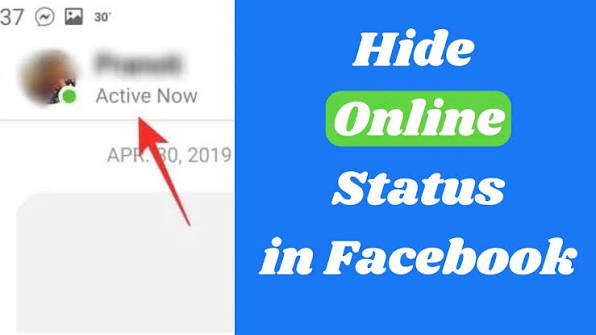
If you hide your online status on Facebook, other users won't be able to see whether you're currently logged in to Facebook. We'll show you how to protect your privacy this way.
Hide Your Online Status on Facebook
- Log in to Facebook, open the Chats section, and click the small gear icon in the left-hand chat window.
- Then uncheck “Show when I'm active.”
- Now your friends will no longer be able to see if you're online. This applies to both desktop use (green dot) and mobile use (cell phone icon).
Note: If you have Facebook Messenger installed on your smartphone, you’ll also need to go offline there. To do this, tap the “List” button in the bottom-right corner of Messenger, then tap “Active.” Next, tap the blue toggle at the very top next to your own profile to hide your online status.
Frequently Asked Questions
Can I hide my online status only from certain people?
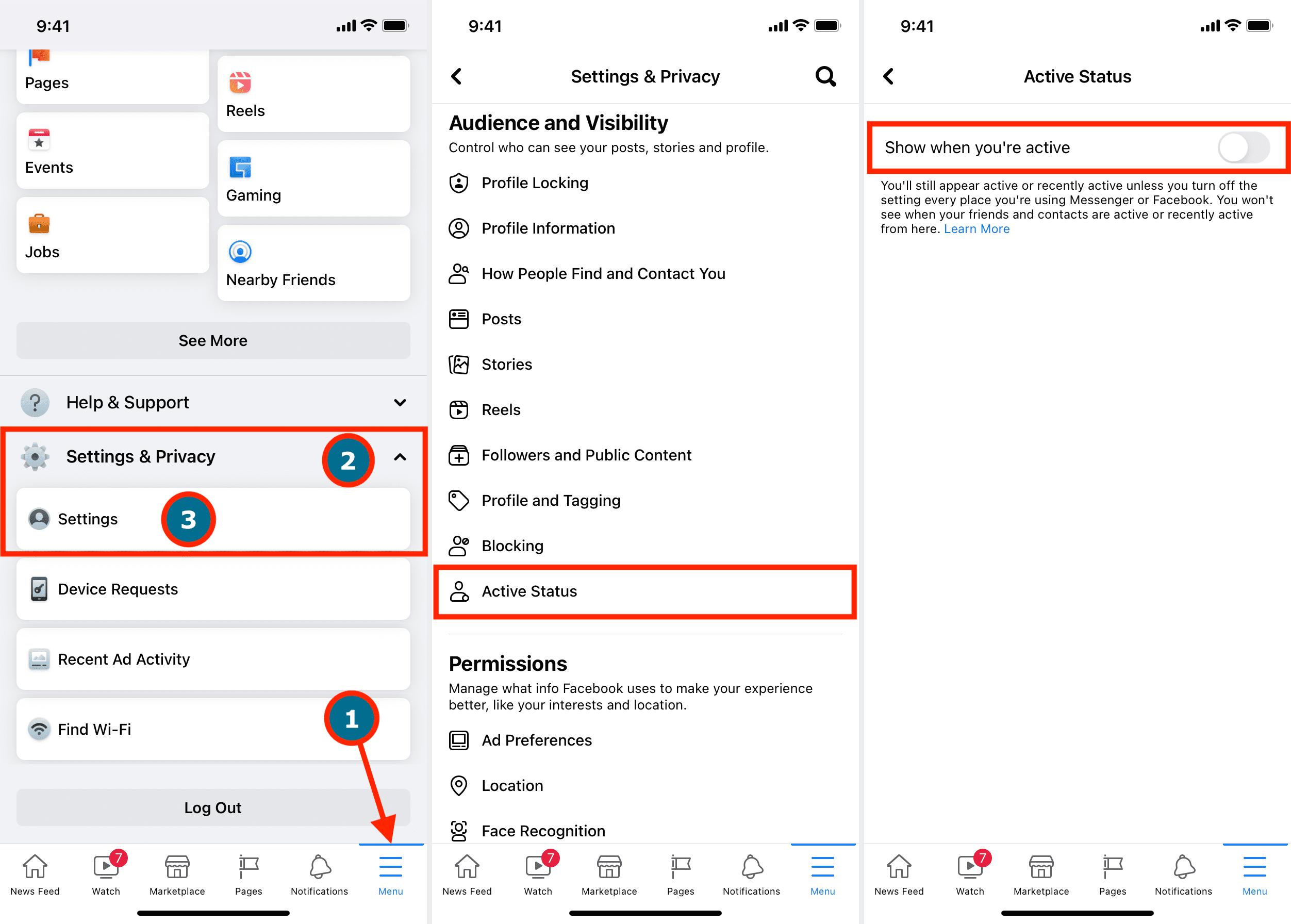
Yes. Facebook allows you to customize your Active Status settings on desktop, so you can hide your status from specific friends if desired.
Does turning off Active Status hide my last active time?
Yes. Your current online status and your recent activity status will no longer be visible to others.
Do I need to disable Active Status on both Facebook and Messenger?
Yes. Facebook and Messenger manage Active Status separately, so you should disable it in both apps if you use both.